
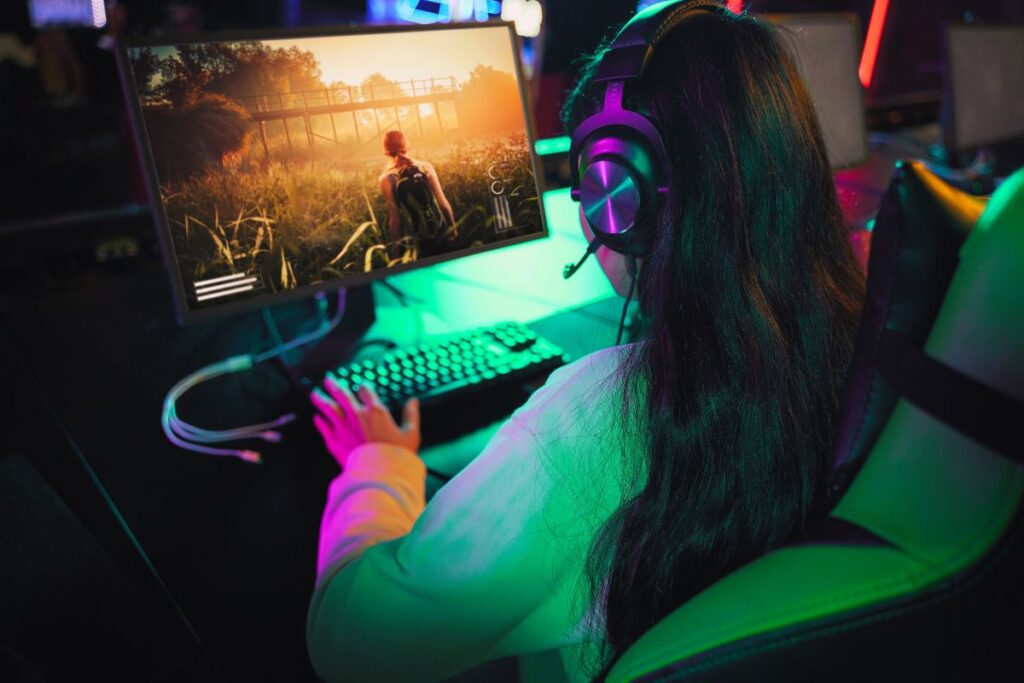
Ray tracing makes games look more real. Light acts the way it does in everyday life. Shadows fall naturally. Reflections show what they should. It can be beautiful.
But it is not easy on your PC. Turn it on without checking settings, and things can go wrong. Your frame rate drops. Your fans get loud. The game stutters or freezes.
You do not need a brand-new computer to use ray tracing. You just need to set things up right. This guide will help you do that. No confusing terms. No long explanations. Just clear steps you can follow.
Why Is Ray Tracing So Heavy?
Most games fake lighting with shortcuts. Baked shadows and fake reflections are cheap to draw and look good enough. Ray tracing skips the shortcuts. It follows the path of light as it bounces around a scene, and it does this for every pixel, many times per second. That is a lot of math. It is also why your GPU needs special hardware for the job.
Knowing this helps later. When you see why it is heavy, the tips below make more sense.
Check Your Graphics Card
Before anything else, make sure your GPU can run ray tracing, not just tick the box. Lots of old cards can turn on the feature, but their numbers drop so low they ruin the experience.
Cards that support ray tracing include:
- NVIDIA RTX cards like the 2060, 3060, 4060, the 50 series, and higher
- AMD RX 6000 and 7000 series cards (and newer Radeon RX cards)
These cards are designed to handle ray tracing. If you are using a GTX card or something older, ray tracing is not going to work well.

Newer is better here. Each new generation of cards handles ray tracing math more efficiently. Recent RTX cards can even run full path tracing at playable speeds, which older RTX cards struggle with. If you are buying a card mainly for ray tracing, the generation matters as much as the model number.
Check the game’s own requirements, too. Most games list their ray tracing needs on the store page. These are usually higher than the normal minimum specs.
Also, having at least 16 gigabytes of RAM helps. If you can afford 32, even better. Use an SSD instead of a hard drive to make games load faster. This does not change ray tracing itself, but it improves the overall gaming experience.
Do Not Forget the CPU
Ray tracing leans on the GPU, but your processor still matters. It handles physics, game logic, and moving data around. A weak CPU can cause stutter even when the graphics card is strong. If your game stutters but your GPU is not at full load, look at the CPU.
Update Your Graphics Drivers
It sounds boring, but it is important. New drivers often improve game performance. They also fix problems related to ray tracing and other graphics settings.
If you use an NVIDIA card, install GeForce Experience and use it to get the latest drivers. If you have an AMD card, download their Adrenalin Software.
NVIDIA labels its stable releases “Game Ready.” Do not stop at the driver. Update Windows and your game launcher (Steam, Epic Games, and so on) too. Old software is one of the most common causes of uneven performance, and it is easy to miss.
This can make a real difference. Many times, performance goes up just from keeping drivers fresh.
Use DLSS or FSR to Boost Performance
Ray tracing is heavy. It lowers your frame rate. That is where DLSS and FSR come in.
DLSS is for NVIDIA cards. FSR is for AMD. Both do something clever. They let the game run at a lower resolution and then scale it up to look sharp. The result is a game that feels smooth but still looks great.
Intel cards have their own version called XeSS. It works in a growing number of games.
Frame Generation
Both DLSS and FSR can also do something called frame generation. Instead of drawing every frame in full, the GPU predicts and creates extra frames. This is cheaper than drawing real ones, so your frame rate climbs. The newest NVIDIA tech can create several extra frames for each real one, but only on the latest RTX 50 series cards.
Pick the Right Mode
DLSS and FSR usually have modes. Quality keeps the image sharpest. Balanced and Performance give up some sharpness for more frames. Start with Quality. Move down only if you need more speed.
In most games that support ray tracing, you will see a setting for DLSS or FSR. Turn it on. You will notice better performance right away. In most cases, turn this on before you switch off any ray tracing effect. You keep the better lighting and still win back most of your frames.
Customize Ray Tracing Settings
You do not need to turn everything to the highest setting. Most games let you choose which ray tracing features to use. These usually include:
- Reflections
- Shadows
- Lighting
Start with just one. For example, turn on reflections and leave the others off. If the game runs well, try adding shadows. If it slows down too much, turn some features back off.
Reflections make a big difference in games that have lots of water, glass, or shiny surfaces. Shadows are less noticeable, so you can leave those on medium.
Lower Other Graphics Settings
To make space for ray tracing, turn down other things. Some good ones to reduce are:
- Texture quality
- Ambient occlusion
- Anti-aliasing
- Volumetric lighting
These settings use a lot of power. If you lower them just a little, you can run ray tracing without a big drop in performance.
You do not have to make everything low. Find a balance. Keep what matters to you, and lower the rest.
Watch Your Temperatures
Ray tracing makes your graphics card work harder. That means it gets hotter. If your system is too hot, it may slow itself down to stay safe.
Make sure your PC has good airflow. You want cool air coming in and hot air going out. Clean your fans. Remove dust. Make sure your cables are not blocking air inside the case.
Use a free tool like MSI Afterburner to watch your temperatures. If your GPU is running hotter than eighty-five degrees, consider changing your fan settings or adding another fan to your case.
Use Windows Game Mode and Close Background Apps
Windows has a feature called Game Mode. It helps your PC focus on the game by stopping background activity.
- To turn it on, go to Settings, then Gaming, then Game Mode. Switch it to on.
- Also, close apps you do not need. Web browsers, music players, and even background updaters can use up resources. Close them before playing.
- This makes more room for the game to run well.
Use Built-In Benchmarks to Test Settings
Many games have a performance test built into the menu. It runs a short demo and shows your average frame rate. Use this to test changes.
Make one change at a time. Then run the test. That way, you know what helps and what does not.
If your game does not have a built-in test, just play for a few minutes and trust your eyes. If it feels smooth, you are on the right track.
Consider Overclocking if You Are Comfortable
This step is for people who know what they are doing. Overclocking means pushing your graphics card to work a little harder than its default settings.
You can use tools like MSI Afterburner to do this. Start small. Watch your temperatures. If the game crashes, you went too far.
This is not required, and it can be risky. Only try this if you are confident. A small overclock can give a few extra frames, but it is not a magic fix.
Pick the Right Games for Ray Tracing
Not every game uses ray tracing well. Some just add it in as a bonus. Others build their entire look around it.
Games that really show off ray tracing include:
- Cyberpunk 2077
- Control
- Minecraft RTX
- Portal RTX
Try ray tracing in games that use it properly. In older or simpler games, it might not add much.
Do Not Obsess Over Frame Rates
It is easy to chase high numbers. Everyone wants sixty or more frames per second. But some games feel fine at forty-five or even thirty-five, especially if you are playing single-player games.
If your game looks good and feels smooth, that is enough. Do not let the numbers ruin your fun.
Final Thoughts
Ray tracing is a great way to make games look more real. But you need to set up your system the right way. You do not need the most expensive parts. You just need smart settings, clean airflow, and the right tools.
Take your time. Change one thing at a time. Play around until it feels right.
Ray tracing is not just for high-end builds anymore. With a little care, even a mid-range PC can give you beautiful lighting and smooth performance.
And that is the goal. Great visuals, steady frame rates, and no stress.
Enjoy your games. Let the light in.