
Last weekend, I was hunting through my cable drawer in search of a micro-USB cord.
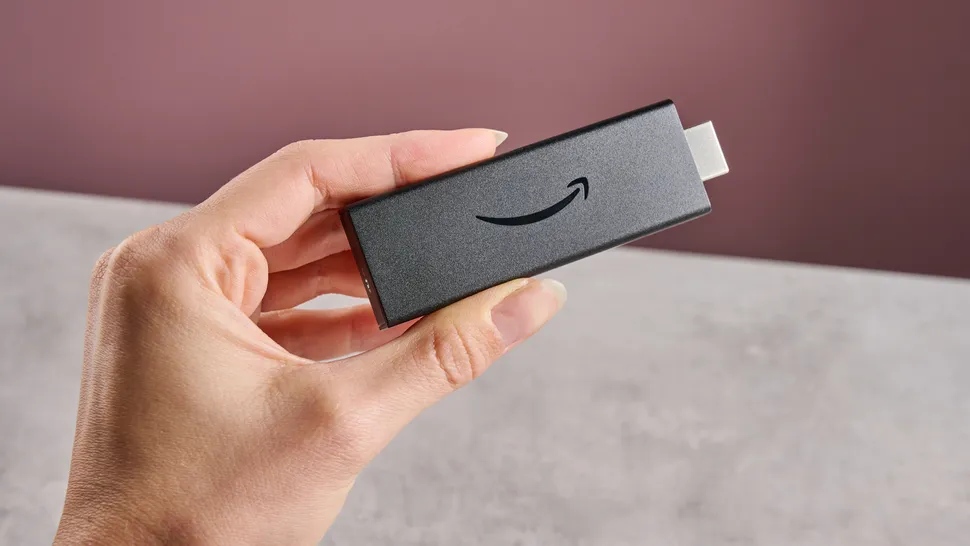
And my fingers hit a sticky plastic rectangle by accident. It was my old 2nd-Gen Amazon Fire TV Stick. Dusty? Absolutely. Totally forgotten? You can bet.
This model was a real workhorse in its prime, dating back to late 2016. But today? The device had trouble running the ad-intensive Fire OS on 1 GB of RAM. It is lagging like crazy.
My first thought was to throw it in the bin for good. But then I stopped.
There had to be something I could still do with it. Even though the casing was scuffed, the hardware seemed fine. So I plugged it in, connected to the Wi-Fi, and started wondering if I had been a little premature to write it off.
Turns out, I was.
1. Set It Up in a Parent’s or Grandparent’s Room
If you have elderly parents hooked to the TV, you could get a phone call when you are not home because the TV “isn’t working.” Many times, they just press the wrong button on the remote and don’t know how to get back to what they were watching.
Not everyone wants the newest streaming device with the latest features. My parents, for example, would much rather have a simple setup even if it is on a relatively slower side. They just want to pick up the remote, find something to watch, and press play.
Of course, I wouldn’t recommend an old FireStick if it’s struggling badly or can’t keep up with the services they need. But if its limitations aren’t getting in the way, giving it a second life in a parent’s or grandparent’s room can be a much better option than leaving it forgotten in a drawer.
Before placing it in an elderly person’s room, I would suggest you make these tweaks on your FireStick for a smoother experience:
- Turn Off Homescreen Video Ads: Settings > Preferences > Featured Content and switch both Allow Video Autoplay and Allow Audio Autoplay to OFF.
- Disable Notifications: Settings > Preferences > Notification Settings and turn on Do Not Interrupt.
- Pin Favorite Apps: Select Apps, highlight your app, press the Menu (≡) button, and select Move to Front.
2. Carry It in Your Travel Bag
Unplugging your main living room setup every time you head out of town is an absolute hassle.
You reach behind the mounted TV, yank out cables, untangle power bricks, and whatnot. What’s worse, when you finally return home exhausted, you have to redo the entire setup from scratch just to watch the evening news.
Hotel rooms are a bit of a gamble when it comes to TVs. If you are lucky, you may get a decent smart TV with all the streaming options under the sun. Other times, you’re literally staring at a 2-decade-old TV with a non-functional remote.
That’s where having a FireStick in my bag makes sense. Almost all TVs have an HDMI port. This means you can plug in your FireStick device and use the interface you’re already familiar with.
No learning a new smart TV menu on vacation.
To make it easier, keep these exact accessories tucked inside your travel case alongside the stick so you never have to scramble for cables at 11 PM:
- FireStick
- Micro-USB Cable
- Power Adapter
- HDMI Extender Dongle
- Fire TV Remote
3. Use It for App Testing
I’ve always loved tinkering with streaming setups. I download new apps as soon as I hear about them and test them to see how far one can push a tiny media player.
The catch is that most people simply don’t rush out to buy a new streaming stick every time Amazon updates its hardware lineup. Most families hang onto the same dongle for three, four, or even five years. This creates a massive blind spot.
Whenever a media app starts stuttering, taking ages to load, or acting plain weird, running tests solely on a top-tier new device gives a totally fake picture. It hides the real issues.
Booting up my old FireStick alongside a brand-new model lets me compare performance in real time. I can see the exact frame drops and sudden crashes.
If you’re like me and can’t resist tweaking streaming setups just for the fun of it, give your old gear a second life. We tech heads often get so caught up in having the newest, fastest hardware that we forget how the rest of the world streams.
Seeing how apps stress-test older hardware gives you a whole new appreciation for software optimization and makes troubleshooting way more satisfying.
4. Use It for Digital Signage
If you have a spare TV or monitor with an HDMI input, the FireStick can turn it into a simple information screen.
An old FireStick is the most effective way to build a customized screen for your home or small business without paying for expensive commercial software.
Let’s say you run a small business from home. You can plug your old FireStick into a screen behind the counter to display menus and customer reviews or keep waiting clients engaged with future promotions or sales.
As for personal use, you can utilize it to display a family calendar, keep a running shopping list visible, pull up recipes while cooking, or show reminders for appointments, chores, and other things that are easy to forget.
Final Thoughts
When I first pulled that dusty 2nd-gen FireStick out of my cable drawer, I was convinced its useful days were over. I was wrong.
Sure, it isn’t going to compete with newer models like FireStick 4K Max 1st Gen and FireStick 4K Max 2nd Gen in terms of speed, features, and overall performance. But that doesn’t mean the device has to end up in the trash.
Just like mine, an extra piece of silicon lying in your cupboard still has plenty of life left in it. So before you throw your old tech into the electronic recycling bin, try using it for different tasks.